
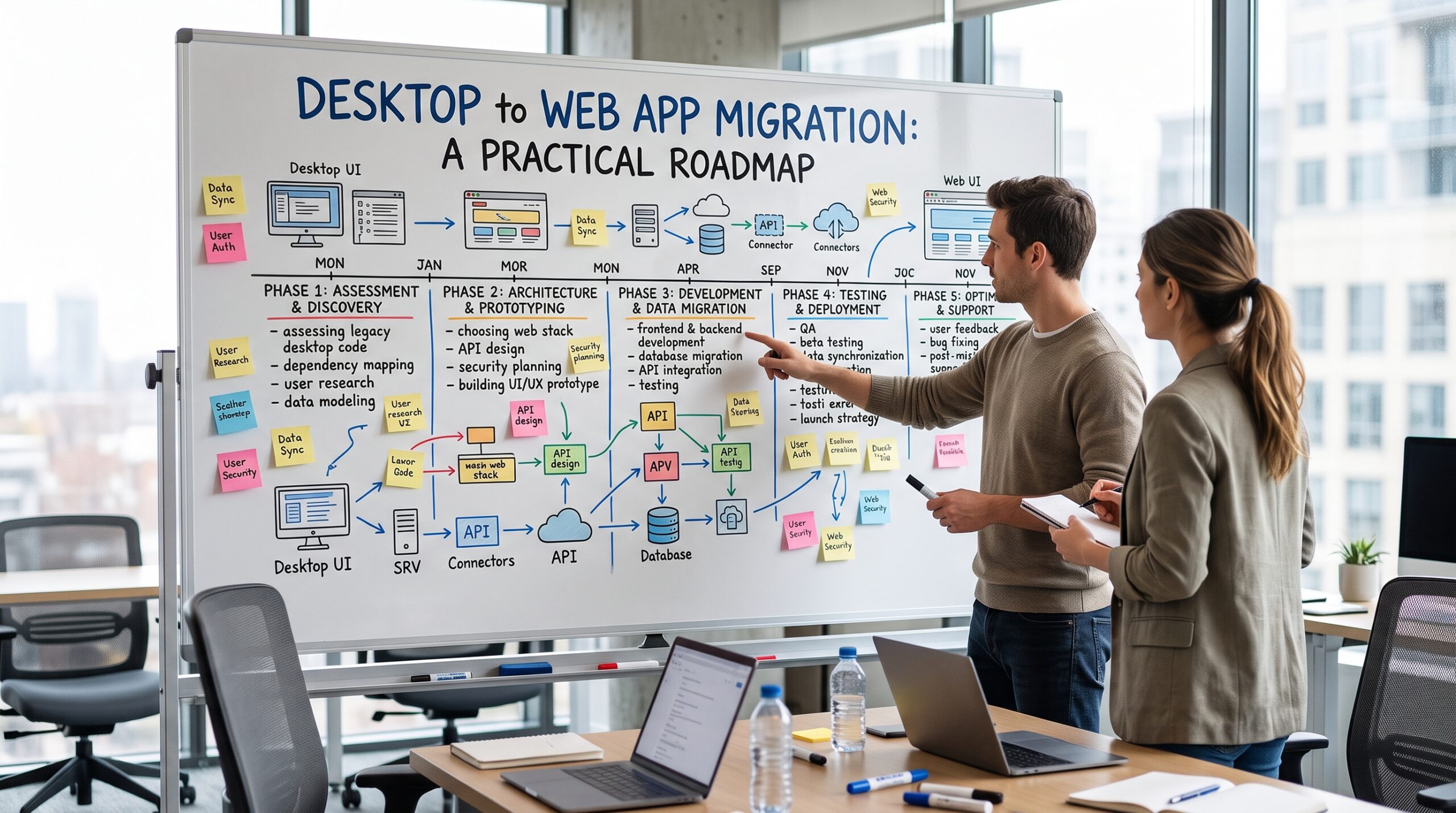
Most of the healthcare software I get called in to assess for a desktop to web app migration was never meant to last this long. It’s usually a Windows thick client written in VB6, PowerBuilder, Delphi or early .NET WinForms, installed on a few hundred workstations, and connected to a SQL Server box down the hall. It works. Clinicians know every shortcut. And nobody wants to touch it, because the last time somebody tried, the lab results queue stopped for an afternoon. If that sounds familiar, our guide on how to migrate legacy Windows applications covers the wider picture.
I’ve worked as a solutions architect on legacy application modernization programs for clinics, diagnostic labs and payer operations for a long time now. The pattern rarely changes. The desktop app has turned into a liability, and the risks of end-of-support software keep piling up. Installs break with every Windows update, remote staff can’t get to it without a clunky VPN session, and the two people who understand the codebase are about to retire. Leadership wants it “on the web,” and everyone hopes that’s one project with one budget line.
It isn’t. A desktop to web app migration in healthcare is a series of decisions, and the order you make them in matters more than the framework you pick. This is the roadmap I actually use, including the parts that rarely make it into vendor slide decks.
Why a Desktop to Web App Migration Is So Hard in Healthcare
Before planning anything, be honest about why the system is still on the desktop. In my experience it’s almost never laziness. Desktop apps in clinical settings tend to be tied to the physical workstation in ways that web apps can’t easily copy.
Here’s what I find in nearly every assessment:
- Local hardware integration with label printers, barcode scanners, signature pads, card readers, and sometimes lab instruments talking over serial ports.
- Direct database connections, where the client opens a connection straight to the production database and business logic lives in stored procedures and form events.
- File system dependencies, like scanned documents written to a mapped drive, or nightly import files dropped into a shared folder.
- Undocumented interfaces, usually an HL7 v2 feed that somebody built years ago and that half the downstream systems now quietly rely on.
- Workflow muscle memory, where a registration clerk can get through twelve fields in eight seconds using nothing but the keyboard.
Any one of these can sink a migration if you find it late. All five together explain why so many of these projects stall after the first demo.
What a Desktop to Web App Migration Gives You, and What It Costs
I always start any desktop to web app migration with a plain conversation about tradeoffs, because “web” is often treated as an outcome instead of a means.
The gains are real. You get central deployment instead of touching every workstation. Staff can work from home or a satellite clinic without a full remote desktop session. Patching and monitoring get simpler. And you get a cleaner path to modern identity, audit logging and interoperability. One healthcare cloud provider that Cybage worked with moved its analytics application from desktop to web and resolved long standing OS compatibility, installation, infrastructure and performance problems along the way. That list of fixed pain points is close to what I hear from most clients.
The costs are just as real. Browsers can’t freely reach local devices. Network latency becomes part of every click. Your security perimeter moves from “inside the building” to “anywhere with a login.” And you are now running a service, not shipping a binary, which means uptime, scaling and incident response all land on your team.
If leadership understands both columns going in, the project survives its first rough quarter. If they only hear the first column, it usually doesn’t.
Phase 1: Map the Real System Before Your Desktop to Web App Migration
The first four to six weeks of any program I lead are pure discovery, and I protect that time hard.
Shadow the People Who Use It
I sit with users. Not in a conference room, but at the front desk, in the lab, in billing. My goal is to see which screens they actually use, which ones they skip, and where they keep a sticky note with a workaround. On one engagement with a regional diagnostic group, the official spec listed 140 screens. Users relied on about 35 of them. Another 20 existed only to fix data problems caused by the other 35.
Build the Integration and Data Map
At the same time, the technical team builds an integration map. Every inbound and outbound connection gets listed: HL7 feeds, flat file exports, printer calls, database links to reporting tools, and anything that touches a payer clearinghouse. We tag each one with an owner and a criticality rating. If a connection has no owner, it goes on a risk list right away.
By the end of this phase I want three artifacts:
- A capability inventory grouped by business function (registration, scheduling, orders, results, billing, reporting).
- An integration register showing every dependency, its protocol and its owner.
- A data map showing where protected health information lives, how it moves, and who can see it.
That third one gets reused later for the HIPAA risk analysis, so doing it carefully now saves real time.
Phase 2: Pick a Path for Each Capability, Not for the Whole App
This is where most programs go wrong. Teams treat the migration as one decision: “We’re rewriting it in React” or “We’re moving it to the cloud.” In reality each capability deserves its own call.
Use the 7 Rs to Plan Your Desktop to Web App Migration
I lean on the 7 Rs because executives already recognize them: rehost, relocate, replatform, refactor, repurchase, retire and retain. AWS also makes a point people tend to skip. Its guidance warns against refactoring as the default for large migrations, since it means modernizing the application while you move it. In plain terms, rebuilding everything at once is the riskiest option, so save it for the parts that earn it. Our breakdown of rewrite vs. refactor for legacy code goes deeper on that call.
How I Sort a Typical Healthcare Portfolio
- Retire the screens nobody uses. In discovery, roughly a third of features often turn out to be dead weight.
- Repurchase commodity functions. If the app has its own homegrown scheduling or fax module, a mature SaaS product with a signed Business Associate Agreement is often cheaper and safer. The build vs. buy software question is worth asking module by module.
- Rehost through app streaming as a short bridge. Browser delivery tools and virtual app platforms can put the existing desktop UI in a browser tab within weeks. That buys time and gets rid of workstation installs. It isn’t modernization, but it takes the pressure off.
- Refactor the capabilities that differentiate the business or carry the most clinical risk, like order entry, results review, and anything that drives revenue cycle accuracy. This is where custom software development pays off.
- Retain the rare module that’s stable, low risk and tied to hardware you can’t replace yet. Wall it off behind an API and leave it alone for now, following the basics of securing legacy applications.
This mix lets you show progress in the first quarter while the harder rebuild runs in parallel.
Phase 3: Design the Desktop to Web App Migration Around APIs and Identity
Once you know what’s being rebuilt, the architecture conversation gets much more focused. In healthcare, two foundations matter more than the choice of frontend framework.
Start With an API Layer
The single most important structural change in a desktop to web app migration is pulling business logic out of the client and the database and putting it behind a proper service layer. Thick clients often hide validation rules in button click handlers. If you don’t extract and test those rules, the new web UI will quietly let bad data through.
Wherever clinical data crosses a boundary, I push teams toward HL7 FHIR resources instead of inventing a custom schema. It future proofs the system for patient access requirements and payer exchanges, and it gives you a common language with EHR vendors. For apps that need to launch inside an EHR, the SMART App Launch framework is now the norm. HL7 describes it as the standard way for outside applications to connect to EHR data and launch either within the EHR’s own interface or outside it.
One caution from the field: cloud health data platforms change too. Microsoft set September 30, 2026 as the retirement date for Azure API for FHIR and pointed customers to a successor service. That’s not a knock on any vendor. It’s a reminder to keep your own domain logic separate from any one managed FHIR product so the next platform shift is a configuration change, not another migration.
Make Identity a First Class Workstream
Desktop apps often have their own user tables, shared logins at nursing stations, and passwords that haven’t changed in years. Moving to the web is the moment to fix this. I plan identity as its own workstream from day one: single sign on through the organization’s identity provider, multifactor authentication for remote access, role based access mapped to real job functions, and fast user switching for shared clinical workstations. That last one matters a lot. Clinicians will reject any web app that makes them log in from scratch every time they walk up to a terminal.
Plan for Bad Connectivity
Clinics lose internet more often than anyone admits, and some outreach programs run from vans and community centers. If a workflow can’t stop during an outage, design for it. Service workers let a browser app keep working through network drops by intercepting requests and acting as a local proxy even while the device is offline. I don’t make the entire app offline capable, since that gets expensive fast. I pick the two or three workflows that truly can’t stop, such as patient check in or specimen labeling, and build offline queues just for those.
Solve the Hardware Question Early
For label printers and scanners, the usual answers are network printers with direct print protocols, small local agent services that the browser talks to securely, or vendor SDKs built for the browser. Prototype this in the first sprint. I’ve watched a beautiful new UI sit unused for two months because nobody could print a specimen label from it.
Phase 4: Build HIPAA Compliance Into Your Desktop to Web App Migration
Any desktop to web app migration involving protected health information moves you into a different HIPAA posture than a desktop client sitting on the local network. Your hosting provider, your logging service and your error tracking tool may all become business associates.
What HHS Actually Says
The HHS guidance on cloud computing is still the clearest starting point. It makes plain that cloud providers who create, receive, maintain or transmit PHI for covered entities or their business associates fall under HIPAA. It also corrects a misconception I hear constantly in planning meetings, that encryption alone takes care of it. According to HHS, encryption matters, but on its own it doesn’t satisfy the Security Rule.
My Compliance Checklist
- A signed BAA with every vendor that touches PHI, including logging, monitoring and support tools.
- An updated risk analysis using the data map from Phase 1, backed by a proper application security assessment.
- Audit logging of every view, change and export of patient records, stored somewhere tamper resistant.
- Session timeouts tuned for clinical reality, strict enough to protect data but not so strict that staff reauthenticate mid charting.
- Strict scrubbing of PHI from application logs, crash reports and analytics events.
- Accessibility conformance, since many healthcare organizations, especially public ones, have formal accessibility obligations.
Treat these as acceptance criteria for every feature, not as a gate at the end. Retrofitting audit logging into a finished web app costs far more than building it in.
Phase 5: Deliver the Desktop to Web App Migration With the Strangler Fig Pattern
I almost never recommend a big bang cutover for clinical systems. The risk to patient care is too high, and the feedback loop is too slow. Instead I use the Strangler Fig approach that Martin Fowler named years ago.
How the Façade Works
Microsoft’s architecture guidance describes the idea as replacing pieces of a legacy system one at a time with new applications and services. It all starts with a façade, a routing layer that sits between the client, the legacy system and the new system and decides where each request goes.
For a desktop to web app migration, that façade is usually a combination of a shared API gateway and a launcher. Users start in the new web shell. Rebuilt modules open natively in the browser. Modules not yet migrated open through the streamed legacy app, with patient context passed along so nobody retypes a medical record number. Each release moves another capability over.
The Real Risk Is Stalling
Fowler himself admits that replacing a system deeply woven into business processes is never easy. The biggest danger I’ve seen isn’t technical. Thoughtworks points out that shifting priorities or changing stakeholders can stall the effort before the legacy system is fully replaced, leaving an organization stuck running both. To prevent that, I set a decommission date for the legacy client at the very start and report against it every month.
A Sensible Module Order
- Read only views first, such as results lookup, patient summaries and reports. They carry low risk and build user trust quickly.
- Low volume administrative workflows next, like provider maintenance or reference tables.
- High volume transactional workflows after that, such as registration, scheduling and orders, once the platform has proven itself.
- Device heavy and integration heavy workflows last, after the hardware approach has been tested in production.
Phase 6: Handle Data Carefully During the Desktop to Web App Migration
During the strangler period of a desktop to web app migration, both systems are live, and they need to agree on the truth. This is the phase that keeps me up at night.
My strong preference is to keep the legacy database as the system of record at first, with the new services reading and writing through a controlled API. Dual writing to two separate databases sounds simple and almost always produces drift. When a capability fully moves, its data ownership moves with it, in one planned step with a rollback plan.
For every data move I insist on:
- Automated reconciliation reports comparing record counts and key fields between old and new stores.
- Clinical sign off on sample patient records before and after migration.
- A documented rollback plan that has actually been rehearsed.
- Preserved historical audit trails, since auditors and legal teams will ask for them years later.
Healthcare data is messy. Expect duplicate patients, free text fields stuffed with structured data, and codes that changed meaning over time. Budget time for cleanup, and don’t let the new system inherit garbage just to hit a date.
Phase 7: Respect Clinical Usability
Here’s an uncomfortable truth: many web rewrites are slower to use than the desktop apps they replace. Designers often bring consumer habits, like generous whitespace, mouse driven interactions and multi step wizards, into environments where speed and data density are what count.
I bring frontline users into design reviews from the first wireframe. Keyboard navigation and tab order get tested on every form. High density layouts stay wherever clinicians need to see a lot at once. Task completion time is measured against the old system, and any regression is treated as a defect. Familiar terminology stays too, even if the developers find it odd.
Training matters as well. I like a super user model: two or three respected staff members per department who get early access, help shape the screens, and then become the first line of support at go live. Their buy in does more for adoption than any email campaign.
Phase 8: Cut Over, Then Actually Turn It Off
Every module cutover needs a defined window, extra support on site or on call, a hypercare period of two to four weeks, and clear criteria for declaring it stable. Track support tickets, task times and error rates daily during hypercare.
Then comes the step most organizations skip: decommissioning. Remove the old client from workstations. Revoke its database credentials. Archive the code and database according to your record retention rules. Shut down the old servers. If you don’t, someone will keep using the legacy screen “just for this one report,” and five years from now you’ll be paying to support two systems. The true cost of maintaining legacy software is usually higher than anyone budgets for.
Desktop to Web App Migration Mistakes I See Over and Over
After enough of these programs, the failure patterns are predictable:
- Copying the old UI screen for screen. You carry over every workaround and gain none of the benefits.
- Skipping the integration inventory, then finding a critical HL7 feed two weeks before go live.
- Treating security as a final review instead of a design input.
- Picking a frontend framework before deciding where business logic lives.
- Leaving no budget for hardware integration testing in real clinical spaces.
- Not giving the legacy system a hard retirement date.
- Leaving clinicians out until user acceptance testing, when it’s too late to change anything meaningful.
None of these are exotic. They happen because teams are under pressure to show a shiny demo early. Resist that pressure. A well planned first quarter is worth more than a flashy prototype.
Final Thoughts on Desktop to Web App Migration
A successful desktop to web app migration in healthcare isn’t really a technology story. It’s about understanding how care gets delivered, protecting patient data at every step, and replacing a trusted tool without disrupting the people who rely on it every hour of their shift. If you’re bringing in outside help, choosing a software development partner who has shipped clinical systems before matters as much as the plan itself.
If you take one thing from this roadmap, let it be this: decide capability by capability, deliver in small slices, and plan the end of the old system as carefully as the start of the new one. Do that, and the migration stops being a risky leap and becomes a series of manageable, measurable steps.
Frequently Asked Questions
1. How long does a desktop to web app migration usually take in healthcare?
For a mid sized clinical or administrative application, expect roughly 12 to 24 months using an incremental approach. A browser streaming bridge can remove workstation installs within weeks, while a full refactor of core modules takes longer. Microsoft’s Strangler Fig pattern guidance explains why phased delivery keeps risk manageable.
2. Is a web app less secure than a desktop app for patient data?
Not by nature, but the security model is different. You’ll need BAAs with cloud vendors, strong identity controls and full audit logging. The HHS Guidance on HIPAA and Cloud Computing covers what covered entities and their providers must do.
3. Should we rewrite the whole application or migrate it in pieces?
In most cases, in pieces. Classify each capability using the 7 Rs and save full refactoring for the modules that matter most. AWS Prescriptive Guidance on migration strategies explains when each option fits.
4. How do we connect the new web app with our EHR?
Use HL7 FHIR APIs for data exchange and the SMART App Launch framework if the app needs to open inside the EHR with patient context. The HL7 SMART App Launch specification is the authoritative reference.
5. Can a healthcare web app keep working during an internet outage?
Yes, for selected workflows. Service workers can cache resources and queue transactions until the connection returns. Google’s web.dev guide to service workers explains how this works.
6. What’s the biggest reason a desktop to web app migration fails?
Stalling halfway, with old and new systems running side by side indefinitely. Thoughtworks on the Strangler Fig pattern discusses this risk and how to plan around it.
References
- Martin Fowler. Strangler Fig Application. martinfowler.com.
- Microsoft. Strangler Fig Pattern, Azure Architecture Center. Microsoft Learn.
- Thoughtworks. Embracing the Strangler Fig Pattern for Legacy Modernization, Part One. Thoughtworks Insights.
- Amazon Web Services. About the Migration Strategies. AWS Prescriptive Guidance.
- IBM. The 7 R’s of Cloud Migration. IBM Think.
- U.S. Department of Health and Human Services. Guidance on HIPAA and Cloud Computing. HHS.gov.
- HL7 International. SMART App Launch Implementation Guide. HL7.org.
- Microsoft. SMART on FHIR Overview, Azure API for FHIR. Microsoft Learn.
- Google. Service Workers, Learn PWA. web.dev.
- HealthTech Magazine. The Ultimate Roadmap to Modernizing Legacy Applications in Healthcare. HealthTech.
- InfoQ. Transforming Legacy Healthcare Systems: A Journey to Cloud Native Architecture. InfoQ.
- Cybage. Improved Customer Retention by 50% Through Migration to a Scalable Web App. Cybage.

A technology writer at BytePointer.com, covering software development, cybersecurity, application security, and legacy modernization. She simplifies complex technical topics into clear, practical insights for developers and IT profession
Leave a Reply