
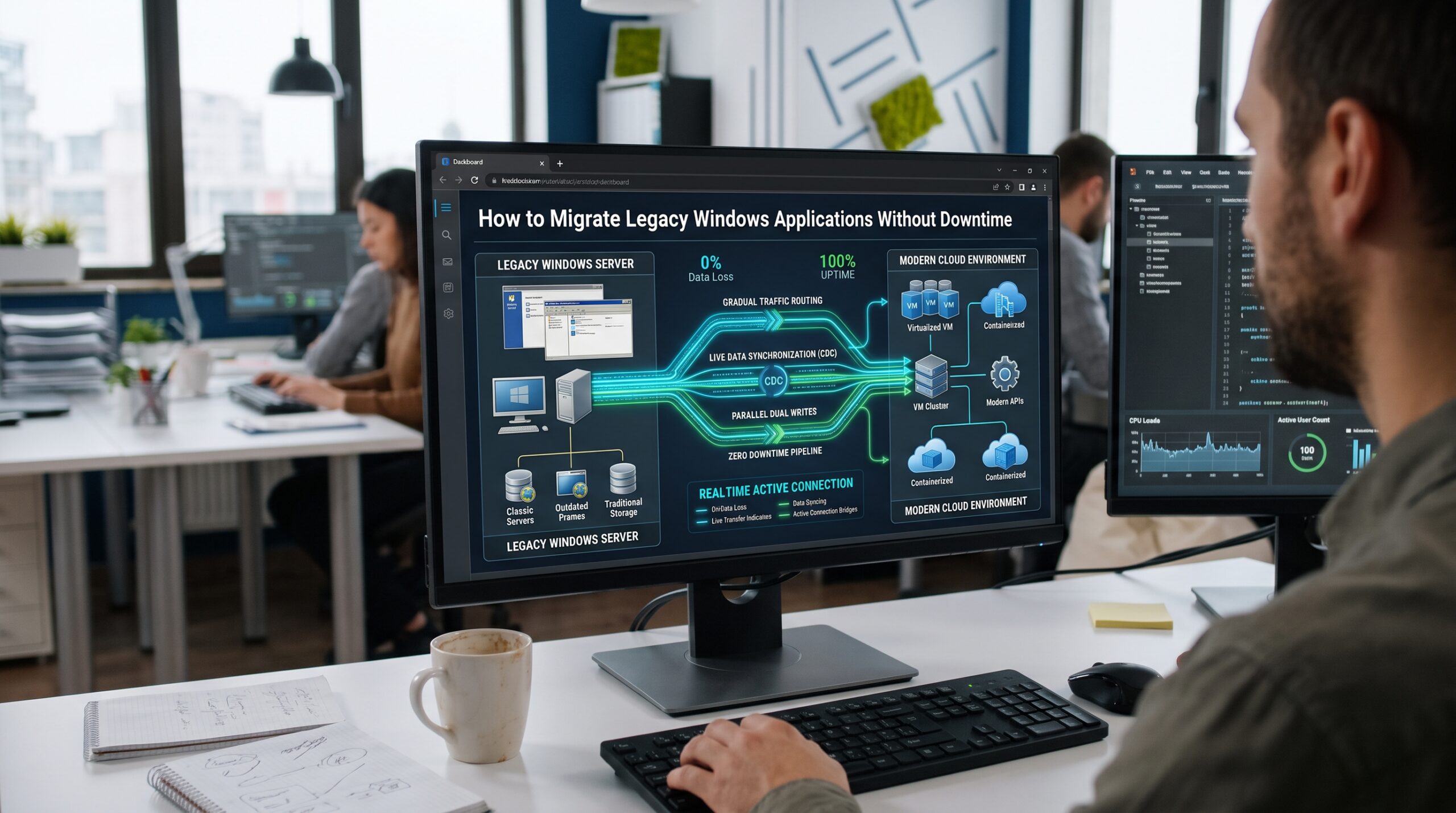
Anyone who has tried to migrate legacy Windows applications knows the failures rarely come from where you expect. The first legacy migration I ever led went wrong at 2:40 in the morning, and the cause wasn’t the database, the network, or the cloud. A payroll application we’d moved cleanly to a new Windows Server host kept failing on one report. After an hour of digging we found that the report called a tiny COM component that wrote a temp file to a mapped drive letter. The drive letter only existed because a logon script from around 2009 created it on the old server. Nobody alive at that company knew the script existed.
We rolled back, nobody lost a paycheck, and I learned the lesson that has shaped every migration I’ve run since. The technology is rarely what hurts you. What hurts you is the stuff nobody wrote down.
I’ve spent most of my career as a cloud and Windows migration architect, moving line of business systems for professional services firms, accounting practices, logistics companies and a few manufacturers with very old ERP installs. This is the approach I use now. It isn’t flashy, but it keeps the lights on while the move happens, which is the whole point.
Why You Must Design to Migrate Legacy Windows Applications Without Downtime
Most teams treat zero downtime as a hope. They plan the migration, schedule a weekend window, and cross their fingers. That works until the window runs out at 6 a.m. Monday with the app half moved.
When I say “without downtime,” I mean you design the migration so the old and new environments run side by side, data stays in sync between them, and switching users over is a quick, reversible traffic change rather than a big bang event. In practice there may still be a brief pause measured in seconds or a couple of minutes while connections drain. What there shouldn’t be is a long outage, a frozen order desk, or a client portal showing an error page.
That shift in thinking changes your whole plan. You stop asking “how fast can we move it?” and start asking “how do we run two copies safely, and how do we flip between them?”
Step One: Build an Honest Inventory Before You Migrate Legacy Windows Applications
You cannot migrate what you cannot see. Before you migrate legacy Windows applications, you need a complete picture of every application, every server it lives on, and every connection it makes. I don’t touch a single server until I have it.
Let Discovery Tools Watch Real Traffic
For the server side, I lean on Azure Migrate’s dependency analysis. The agentless option gathers TCP connection data from discovered servers on a regular polling cycle, which means you can watch real traffic patterns for a few weeks without installing anything on fragile old boxes. Let it run through at least one month end close. Some of the most important connections in a business only happen once a month, and if you sample a quiet Tuesday you’ll miss them.
Hunt for the Dependencies Tools Miss
Tools only catch what moves across the network, though. The hidden dependencies that bite hardest usually live on the machine itself. Here’s my checklist for every legacy Windows app:
- Hardcoded IP addresses and server names in config files, registry keys, INI files and connection strings
- ODBC data source names set up locally on each server or workstation
- COM and DCOM components, especially 32 bit ones registered years ago
- Scheduled tasks that run batch files, scripts or exports overnight
- Service accounts with passwords nobody has rotated in a decade
- Certificates that are bound to the old hostname or close to expiry
- Mapped drives and UNC paths baked into logon scripts or group policy
- Printer and fax integrations that older finance and legal apps still rely on
- Licensing tied to hardware, such as MAC addresses or dongles
Talk to the People Who Use the App
I interview the people who actually use the app as well. The accounts payable clerk who says “oh, every Friday I click this button and it sends a file to the bank” has just told you about an integration that may not appear in any diagram.
Step Two: Choose How to Migrate Legacy Windows Applications One by One
Not every application deserves the same treatment. The industry shorthand is the “7 Rs,” which AWS documents in its prescriptive guidance and which builds on earlier work by Gartner.
The 7 Rs When You Migrate Legacy Windows Applications
In my own words:
| Strategy | What it means in a Windows shop | When I use it |
|---|---|---|
| Retire | Switch it off | The app has no active users or its function moved elsewhere |
| Retain | Leave it where it is for now | Regulatory, hardware or vendor reasons block a move this year |
| Rehost | Move the server as is to new infrastructure | Stable apps with no source code and a tight deadline |
| Relocate | Move the virtualization platform itself | Large VMware estates heading to a hosted VMware service |
| Replatform | Small changes, like moving the database to a managed service | The app works fine but its platform is the maintenance burden |
| Repurchase | Replace it with a SaaS product | A commercial product now does the same job better |
| Refactor | Rework the code for the cloud | The app is strategic and the team has the source and the skills |
Move First, Modernize Later
A word of honesty here. When I migrate legacy Windows applications for clients, rehost and replatform cover the majority of the portfolio. Refactoring sounds exciting, but trying to rewrite an application in the same project where you’re moving it is how migrations double in length. Move it first, stabilize it, then modernize it as a separate legacy application modernization effort.
The most underrated option is retire. On almost every engagement I find that somewhere between a tenth and a fifth of the “critical” applications are dormant. Every app you retire is one fewer cutover to plan.
Two more notes on the table. Anything you retain still needs hardening while it waits, so treat securing legacy applications as part of the plan, not an afterthought. And for apps where repurchase or a custom replacement is on the table, run a proper build vs. buy software analysis first. Smaller firms should also check whether custom software for your small business would actually pay off before committing to one.
Step Three: Prove Compatibility Before You Migrate Legacy Windows Applications
Older Windows apps were often built against assumptions that newer operating systems don’t honor: admin rights for everyone, writing to Program Files, old .NET Framework versions, or specific registry locations.
Before scheduling anything, I stand up the target operating system in an isolated environment and run the app through its real workflows, not just “does it launch.” I mean logging in as a normal user, printing a report, running the month end process, exporting to Excel, and doing whatever that Friday bank file task involves.
Your Options When Something Breaks
When something breaks, you have options:
- Compatibility shims. Windows has long included compatibility fixes you can apply per application, which solve many old file and registry redirection problems without touching code.
- Vendor updates. Many ISVs released compatible versions years ago that the business simply never installed.
- Microsoft App Assure. This one surprises people. App Assure was launched in 2018 to back Microsoft’s application compatibility promise, and its engineers help remediate issues with line of business and ISV apps on current Windows versions, Azure Virtual Desktop and Windows 365. Eligible customers get it at no additional cost. Keep in mind it isn’t an emergency break and fix line, so engage it during testing, not at 2 a.m. on cutover night.
Use Test Migrations Against the Real Server
If you’re rehosting servers to Azure, use the test migration feature built into Azure Migrate. It spins up a copy of the replicated server in an isolated network without affecting the on premises machine, so you can run your application tests against the real thing. Clean those test machines up afterward, because they keep running and billing until you do.
Step Four: Architect a Parallel Run to Migrate Legacy Windows Applications Safely
This is the heart of the whole approach. To migrate legacy Windows applications without downtime, every layer of the application needs a way to exist in two places at once, stay synchronized, and switch over cleanly. I break it into four layers.
The Server Layer: Continuous Replication
For rehosted servers, you want continuous replication rather than a one time copy. With agentless VMware migration in Azure Migrate, the tool uses VMware snapshots and changed block tracking to copy the disks, then keeps sending incremental changes. The source server keeps serving users the whole time. On cutover night you’re only moving the final sliver of changes, not the whole disk.
One practical warning from the field. Snapshot based backup tools running on the same VMs can conflict with that replication process. Coordinate with whoever owns backups before you start, or you’ll lose a day wondering why replication keeps stalling.
The Data Layer: Keep Both Databases Live
The database is almost always the hardest part. Fowler’s own writing on blue green deployment flags the database as the tricky component, and that matches my experience exactly.
For SQL Server, my preferred tool is the distributed availability group. It links an availability group in your current environment to a second availability group in the target environment, with data flowing continuously between them. Microsoft’s guidance on using a distributed availability group for migration covers moving both standalone instances and existing availability groups to SQL Server on Azure VMs. AWS documents the same pattern for EC2 targets. A bonus I use often: the target can run a newer version of SQL Server than the source, so you can fold a version upgrade into the move.
When the target is synchronized, failover is a controlled, quick operation. The application reconnects to the new primary, and your downtime becomes the length of a connection retry.
If you’re on an edition or version that can’t support distributed availability groups, log shipping or transactional replication can get you close, with a slightly longer final sync. Plan for it honestly instead of pretending it’s instant.
The Traffic Layer: Make the Switch a Routing Change
Users should never need to know where the application lives. They should connect to a name, and you should control where that name points.
A week before cutover, drop the DNS TTL on every hostname involved to something short, like five minutes. When you switch, clients pick up the new address quickly. Better still, put a load balancer or application gateway in front of web tiers so the switch happens at the routing layer.
This is classic blue green deployment, a technique Martin Fowler wrote up in 2010. You run blue (the old environment) and green (the new one) side by side, test green thoroughly, then point traffic at it. If anything goes wrong, you point traffic back. The rollback is the same action as the cutover, just in reverse.
The Desktop Layer: Stop Installing Apps on Every PC
Many legacy Windows applications aren’t servers at all. They’re thick clients installed on hundreds of desktops, and replacing laptops or upgrading Windows is what forces the migration.
For these, I like to move the application to Azure Virtual Desktop with app attach. App attach mounts the application from a separate disk image at sign in, so the app is delivered to the session without being installed into the operating system image. It supports MSIX and Appx packages and Microsoft’s older application virtualization format, which helps if your team already packaged apps years ago. Note that the older MSIX app attach feature has been retired in favor of the newer app attach, so build on the current one.
The beauty of this approach for downtime is that you can publish the app to a pilot group while everyone else keeps using the installed version. Then you widen the group in waves. No single moment exists where everyone switches at once.
The Monolith Problem: Strangle It Slowly
Some applications are too big and too tangled to move in one piece. For those, the strangler fig pattern is the safest approach I know. Martin Fowler named it after the strangler fig trees he saw in Queensland, which grow around a host tree and gradually replace it.
You place a routing layer in front of the old application. Then you move one function at a time, say the invoicing module, to the new platform and route only those requests to it. The old system keeps handling everything else. Over months, the new system grows and the old one shrinks until you can retire it. The risk at any one step is small, and the business never sees a hard switch. The catch is discipline: without a firm sunset plan, the two systems can live side by side for years and quietly double your costs. Build that parallel running cost into your software development cost estimate from the start.
Step Five: Write the Cutover Runbook Like Someone Else Will Run It
Even with all the parallel run architecture in place, the cutover itself needs a script. I write mine assuming the most junior person on the team might be the one executing it at 3 a.m., because sometimes they are. If you’re bringing in an outside firm for the move, ask to see a sample runbook. When you’re choosing a software development partner, it will tell you more than any sales pitch.
What a Good Runbook Includes
A runbook I’d sign off on includes:
- Go and no go criteria agreed in advance with the business owner, in writing
- Pre cutover checks: replication healthy, database synchronized, certificates installed on new hosts, firewall rules tested, service accounts validated
- A freeze point for changes to the old environment
- Final sync steps for each data store, with expected durations
- The switch itself: DNS change, load balancer update, availability group failover, in a defined order
- Smoke tests run by real business users, not just IT, covering the critical workflows from your inventory
- A timed decision point. If smoke tests aren’t green within a set number of minutes, you roll back without debate
- Rollback steps, written out just as carefully as the forward steps
- Communication templates for users, leadership and clients, prepared before the night
Pick the Business’s Real Quiet Period
I also schedule cutovers for the business’s real quiet period, which isn’t always the weekend. An accounting firm in tax season has a very different calendar than a retail logistics company in November. Ask.
Rollback Is a Feature, Not a Failure
The single biggest mindset change I push with clients is this: being able to roll back quickly is what makes a fast, confident cutover possible.
If your plan has no easy way back, every small issue becomes a crisis, and people make bad decisions under pressure. If rolling back means flipping DNS and failing the database back, you can make that call in five minutes and try again next week with a calm team. Teams that migrate legacy Windows applications successfully almost always treat the way back as seriously as the way forward.
To keep rollback viable, keep the old environment intact and synchronized in reverse for a defined period after cutover. I usually hold it for one to two full business cycles, which often means through a month end. Only after that do I decommission the old servers.
Mistakes I Keep Seeing When Teams Migrate Legacy Windows Applications
After many of these projects, the same handful of errors account for most of the pain:
- Sampling dependencies for too short a window. Monthly and quarterly processes get missed.
- Testing as an administrator. The app works perfectly for IT, then fails for every normal user because it needs write access somewhere.
- Forgetting the batch jobs. The app moves, the scheduled task on the old server keeps running, and now two copies are sending invoices.
- Leaving hardcoded addresses behind. Search config files and registry keys for old IPs and server names. Then search again.
- Combining the move with a rewrite. Two big changes at once means when something breaks, you can’t tell which one caused it. Make the rewrite vs. refactor legacy code decision later, once the app is stable on its new home.
- Skipping the business owner. IT can confirm the server is up. Only the person who runs payroll can confirm payroll works.
Why It Matters to Migrate Legacy Windows Applications Right Now
If your estate still includes Windows Server 2016, the clock is real. Microsoft has confirmed that extended support for Windows Server 2016 ends on January 12, 2027, after which servers stop receiving security updates unless they’re enrolled in Extended Security Updates. Microsoft is offering ESU for Windows Server 2016 through Azure Arc, which can buy you time, but it’s a bridge, not a destination.
For professional services firms in particular, an unpatched server holding client financial records, case files or HR data is a liability that clients and insurers increasingly ask about, often alongside proof of a recent application security assessment. The risks of end-of-support software only compound over time. The decision to migrate legacy Windows applications calmly now costs far less than a rushed move after a security incident.
A Final Word on How to Migrate Legacy Windows Applications
If you want to migrate legacy Windows applications without downtime, know that it isn’t magic, and it isn’t about one clever tool. It comes down to a few habits: find every dependency, choose the right path for each app, prove compatibility in isolation, run old and new side by side, make the switch a reversible routing change, and keep the way back open until the business is confident.
The payroll app that failed me at 2:40 a.m. years ago eventually moved cleanly. We found the logon script, recreated the drive mapping properly, tested the report as a normal user, and cut over on a Wednesday afternoon. The payroll team didn’t notice. Honestly, that’s the best review a migration can get.
Frequently Asked Questions About How to Migrate Legacy Windows Applications
Is it really possible to migrate legacy Windows applications with zero downtime?
For most applications, yes, or close enough that users don’t notice. The key is running the old and new environments in parallel with continuous data synchronization, then switching traffic. The blue green deployment approach described by Martin Fowler is the foundation, with a brief connection pause at most during the switch.
What is the best tool for finding hidden dependencies before I migrate legacy Windows applications?
Start with automated discovery, such as agentless dependency analysis in Azure Migrate, and run it long enough to capture monthly processes. Then pair it with a manual review of config files, scheduled tasks, ODBC connections and user interviews.
How do I migrate a SQL Server database without taking the application offline?
Distributed availability groups are my first choice for SQL Server 2016 and later. They keep source and target in sync and allow a quick, controlled failover. Microsoft’s guide to migrating an availability group with a distributed availability group walks through the setup.
What if my old app won’t run after I migrate legacy Windows applications to a newer Windows version?
Try compatibility fixes and vendor updates first. If that fails, eligible organizations can request help from Microsoft App Assure, which helps remediate compatibility issues for line of business and ISV applications on supported Microsoft platforms.
Should I rewrite my legacy application during the migration?
Usually not. Rewriting during a move combines two major risks into one project. Even AWS notes in its guidance on migration strategies that refactoring isn’t recommended for large migrations. Rehost or replatform first, then modernize gradually, ideally using the strangler fig pattern.
What happens if I miss the Windows Server 2016 end of support date?
Servers stop receiving security updates after January 2027 unless enrolled in Extended Security Updates. Microsoft’s support notice for Windows Server 2016 end of support explains the timeline and options.
How long should I keep the old environment after cutover?
Keep it intact and ready for rollback through at least one full business cycle, usually including a month end close. Microsoft’s Cloud Adoption Framework migration guidance recommends completing cleanup of remaining on premises servers only after the cutover is validated.
References
- Microsoft Learn. Dependency analysis in Azure Migrate
- Microsoft Learn. Agentless migration architecture for VMware VMs
- Microsoft Learn. Migration and modernization: common questions
- Microsoft Learn. App Assure application compatibility program
- Microsoft Learn. Understand distributed availability groups for migration
- Microsoft Learn. App attach and MSIX app attach in Azure Virtual Desktop
- Microsoft Azure Architecture Center. Strangler Fig pattern
- Microsoft Windows Server Blog. Planning ahead for Windows Server 2016 end of support
- AWS Prescriptive Guidance. About the migration strategies
- AWS Prescriptive Guidance. Migrate SQL Server to AWS using distributed availability groups
- Martin Fowler. Blue Green Deployment
- BleepingComputer. Microsoft: Windows Server 2016 reaches end of support in January